 Loopstack
Start a song on your iPhone, finish it on your Mac
Ideas show up on the bus, on the sofa, half asleep. A phone is the best place to catch them and a computer is the best place to finish them. The hard part is usually the trip between the two. Here's how to make it painless.
Why split the work
A phone is quick: you open it, play, and the loop is down before the idea fades. But arranging a three-minute song, fixing single notes, and mixing on a 6-inch screen is slow. On a Mac you get a timeline, a piano roll, a mouse and real speakers. Use each for what it's good at.
Option 1: stems (works with any apps)
Most iPhone music apps can export stems: one audio file per part. In Loopstack on iPhone, Share stems exports every loop as its own WAV, plus MIDI files of what you played on the keys.
- Export the stems and AirDrop the folder to your Mac.
- Open your Mac music app at the same tempo.
- Drag the WAVs onto tracks starting at bar 1. Drag the MIDI files onto instrument tracks if you want to change the sounds.
It works everywhere, but it's one-way: audio stems are fixed, and anything you change on the Mac doesn't come back to the phone.
Option 2: the same project on both (Loopstack and Loopstack Pro)
If you use Loopstack on your iPhone and Loopstack Pro on your Mac, there's nothing to export. Both open the same projects through your own iCloud Drive.
- On the phone, turn on iCloud in Projects. Your projects and saved sounds move to your iCloud Drive (only you can see them).
- Open Loopstack Pro on a Mac signed in to the same Apple ID. The project is in the list, with every loop, sound and setting.
- Keep working on either. Loops stay loops, so you can still re-voice a keys part with a different sound on the Mac.
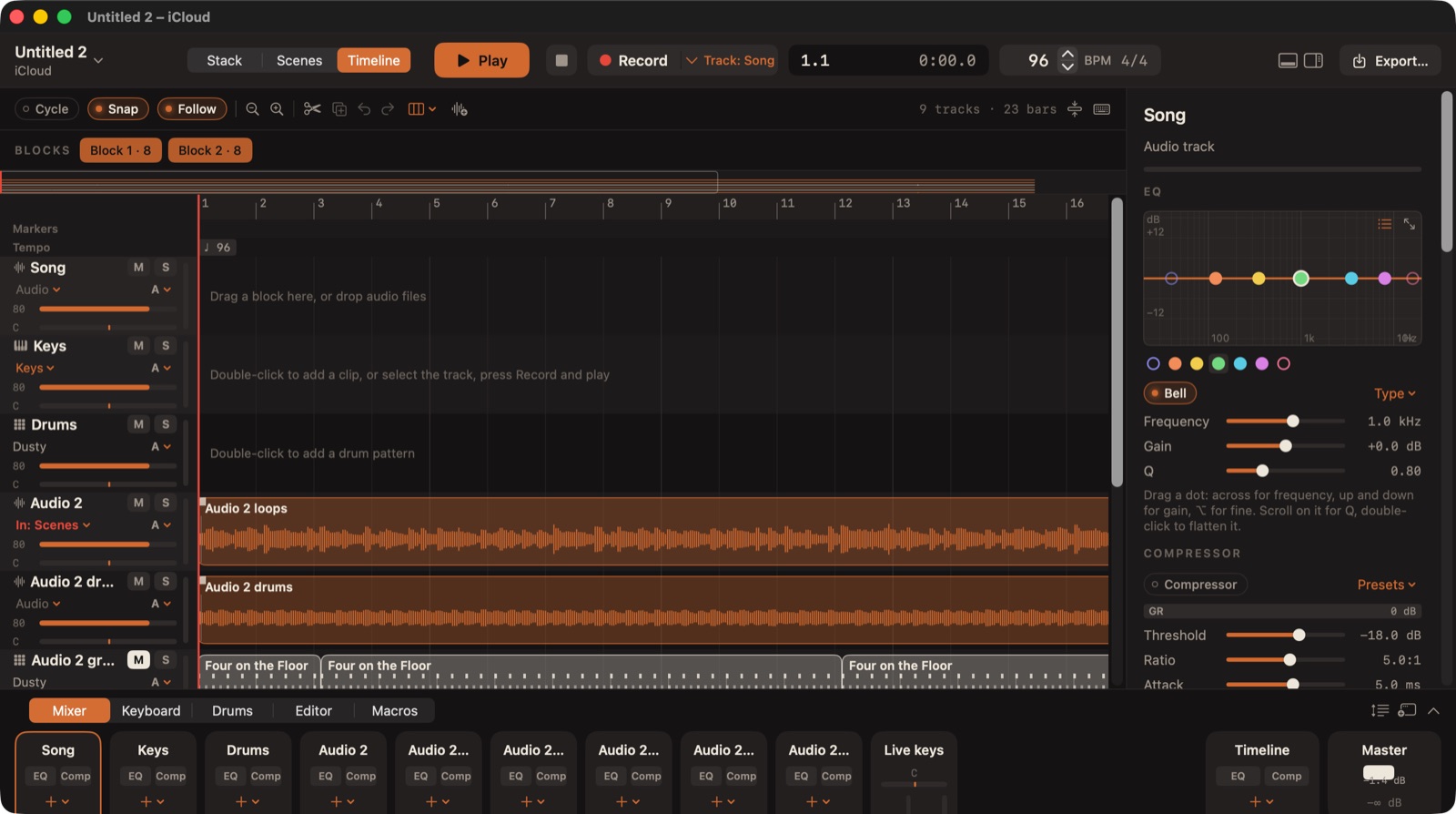
What to do on the Mac
Arrange on a timeline
Use Send stack to timeline to lay your loops out, then build sections: an intro, the main part, a break, the main part again, an end. Copy, trim and mute clips until it flows. Markers help you see the sections.
Fix the notes
Phone takes are rarely perfect. Open a keys loop in the piano roll and fix the one wrong note instead of re-recording the whole part. Quantize, Swing and Humanize tidy timing without making it stiff.
Add what the phone can't
- Plugins: your Audio Unit instruments and effects on any track or on the master.
- Recordings: vocals or guitar through your audio interface, with takes.
- Audio that follows the tempo: Follow the song's tempo (warp) fits a recording or a sample to your song.
- Automation: filter sweeps and volume rides drawn over time.
Mix and export
Balance the parts on the mixer, then export the song as a WAV, or as Stems (a file per track) if someone else is mixing or singing on it.
Tips for a smooth handoff
- Settle tempo and key on the phone. Everything else is easy to change later; these two shape every part.
- Name your loops before moving to the Mac. "Loop 6" means nothing a week later.
- Record a few takes of the important parts on the phone. On the Mac, choosing the best is quicker than re-recording.
Loopstack Pro is the Mac studio for Loopstack: timeline, piano roll, plugins and a full mixer, opening the projects you start on your iPhone. Pay once, no subscription. See what's inside or read another guide.