 Loopstack
How to make a song from loops on iPhone
Most modern music is built from loops: a few bars that repeat while other parts come and go. If you can make eight bars that feel good, you can make a song. Here's how, on an iPhone or iPad.
The words, in plain English
- Loop: a short recording, usually 1 to 8 bars, that plays over and over. A drum pattern, a bassline, a chord progression.
- Take: one attempt at recording a loop. Record three takes, keep the best one.
- Stack: all your loops playing together. In Loopstack, the stack is everything you hear right now.
- Key: the set of notes that sound right together. Pick a key and stay in it, and the parts fit.
- Arrangement: the order of the song's sections: intro, verse, drop, breakdown, outro.
1. Set up before you record
Choose a tempo, a time signature (4/4 if unsure) and a loop length. Four bars is a good default: long enough for a chord progression, short enough to stay catchy. Length and meter lock once you record, so choose them first.
Then choose a Key. Minor keys sound moody or serious, major keys sound bright. Once a key is set, every pad plays a note in it, so you can't hit a wrong note.
2. Record your first loop
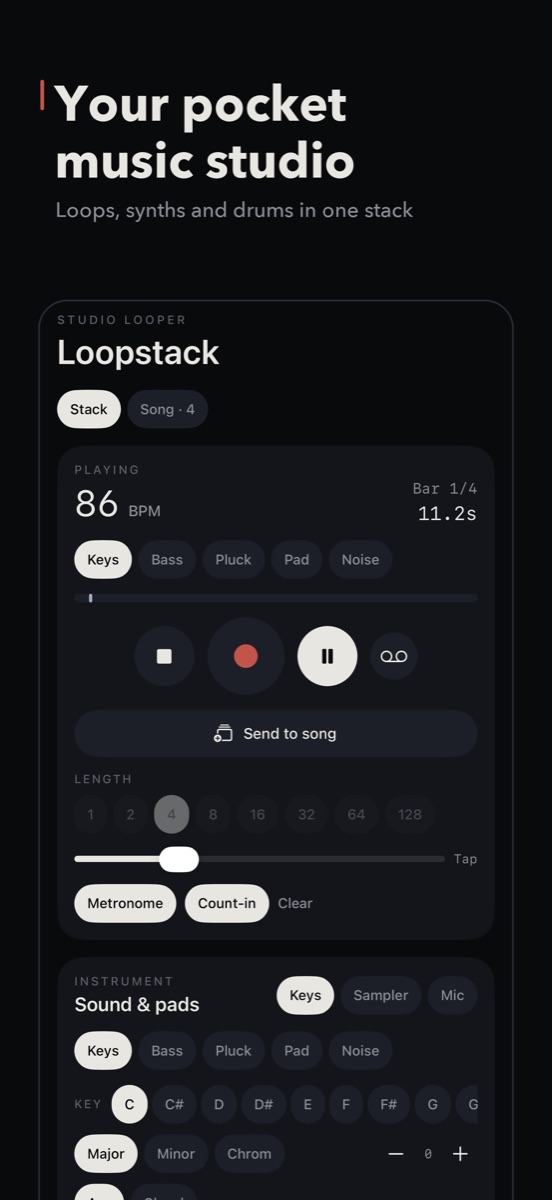
Start with whatever you hear first: drums, a chord, a bassline. Pick a sound and press Record.
- With Count-in on, you get one bar of clicks first.
- You can press Record anywhere in the loop. Loopstack captures exactly one full pass and closes it where it started, so every loop is in time even if you came in late.
- Turn on Chord to play triads or sevenths with one finger, or Arp to turn held notes into a rhythm.
Didn't nail it? Hold the loop's name and choose Record a new take. Earlier takes stay in the Takes row so you can compare.
3. Stack the parts
Add loops one at a time, up to eight. A classic order is drums, then bass, then chords, then a melody or texture on top. Keep each part simple. Two notes in the bass and three chords often beat a busy part, because the parts have to leave room for each other.
Some ways to make loops sit together:
- Use each loop's Tone to darken parts that clash and Pan to spread them left and right.
- Use Rev and ½ on a copy of a loop for reversed or half-speed variations.
- Open Morph for filter sweeps, stutters (Repeat) and rhythmic chopping (Gate).
- Changed your mind about a sound? Play with… re-voices a keys loop with the sound you have selected now, keeping your notes.
4. Turn the loop into a song
A song is the same loops in different combinations over time. In Loopstack:
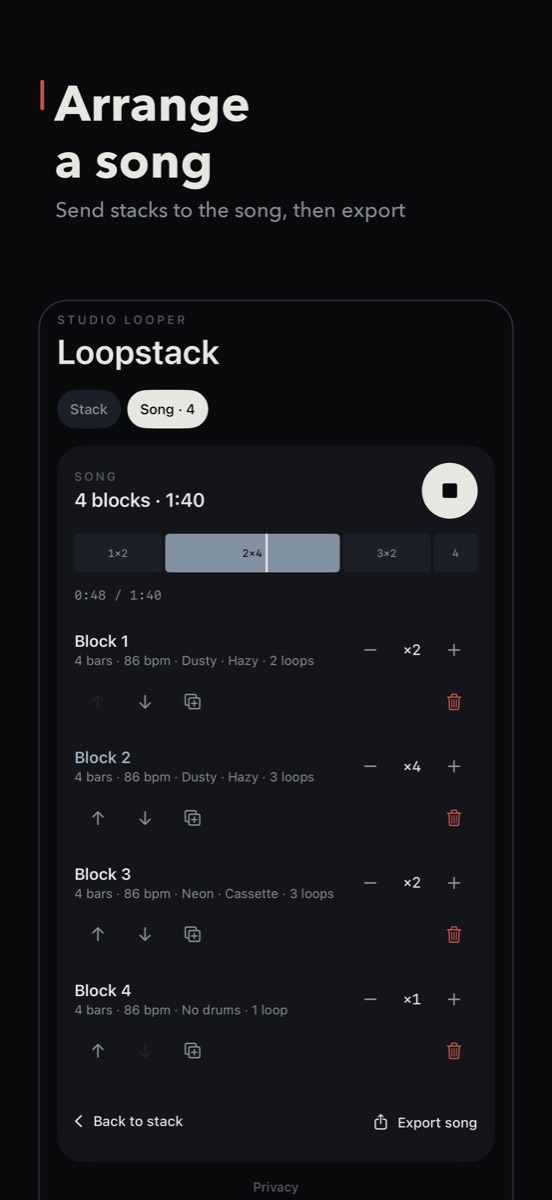
- Mute everything but the chords and tap Send to song. That's your intro.
- Unmute the drums and bass, send again. That's your verse.
- Add the melody, send again. That's the chorus or drop.
- Mute the drums for a breakdown, send. Then bring everything back.
Each send adds a block in Song, exactly as it sounded. Set each block's repeats (×2, ×4…) and reorder them until it flows. Changes are what keep a listener interested: something should come in or drop out every 8 or 16 bars.
5. Finish and share
On the Mix card, a touch of Glue pulls the parts together and Loudness brings the whole song up to a competitive level. Then Export song as WAV or M4A.
Want to keep going on a computer? Share stems exports every loop as its own WAV, plus MIDI files of the notes you played, ready for any DAW. Or open the same project on a Mac in Loopstack Pro.
Loopstack is a beat and loop maker for iPhone and iPad. Pay once, no subscription. See what's inside or read another guide.