 Loopstack
MIDI keyboards, Ableton Link and GarageBand on iPhone
An iPhone or iPad can be the center of a small studio. Here's how to connect a MIDI keyboard, map its knobs, keep tempo with other apps, and use Loopstack's sounds in GarageBand.
Connect a MIDI keyboard
USB
Plug the keyboard into your iPhone or iPad. Recent models with USB-C take a USB-C cable directly. Older Lightning devices need Apple's Lightning to USB Camera Adapter, and some bus-powered keyboards need the version with a power input. There's nothing to set up: Loopstack sees the keyboard as soon as it's connected.
Bluetooth
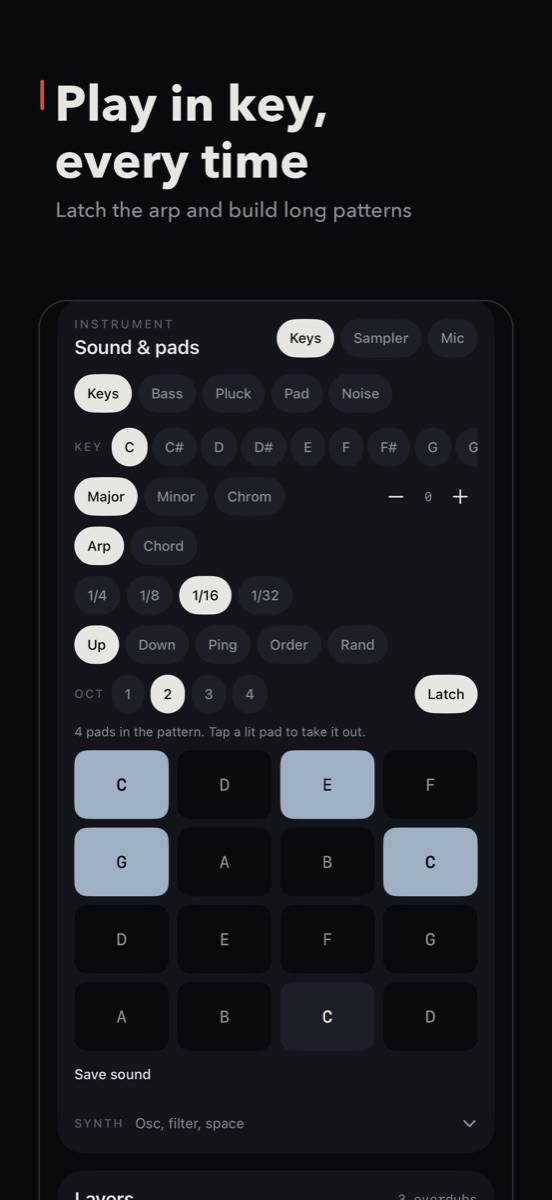
Bluetooth MIDI keyboards pair inside the app, not in the Settings app. In Sound & pads, tap Bluetooth on the MIDI row and choose your keyboard.
Loopstack responds to velocity, the sustain pedal, pitch bend and the mod wheel. The key you set in Loopstack only affects the on-screen pads; your keyboard plays every note you press.
Map knobs with MIDI Learn
Any slider in Loopstack can follow a knob or fader on your controller:
- Long-press the slider's name (not the slider itself).
- Choose Link to MIDI knob. The readout says "Move a knob…"
- Turn the knob. The slider now shows a small MIDI tag.
To undo it, long-press the name again and choose Unlink MIDI knob. Mappings are remembered for each controller, so they carry over to every project.
Good first mappings: a loop's Filter in Morph for sweeps, the master Filter for DJ-style builds, and Pump for sidechain-style pumping.
Sync tempo with Ableton Link
Ableton Link keeps apps in time with each other on the same Wi-Fi network, including apps on other phones, iPads and computers running Live or other Link apps.
- On the transport, tap the Ableton Link row.
- Turn Link on in the settings screen that opens.
- Start Link in the other apps. Tempo and the downbeat stay locked between them.
It's ideal for jamming with a friend: one of you plays drums in Loopstack, the other plays along in another app, and nobody counts in.
Play Loopstack's synths in GarageBand
Loopstack includes Loopstack: Instrument, an Audio Unit (AUv3) plugin with the app's synth sounds. Any app that hosts instrument plugins can load it, including GarageBand, Logic Pro for iPad and AUM.
In GarageBand on iPhone or iPad:
- Open the instrument browser to add a new track.
- Choose External, then Audio Unit Extensions.
- Pick Loopstack: Instrument.
- Choose a category and a sound, and set Space and Volume to taste.
It works the other way too. In Loopstack, Plugins… loads instrument plugins from other apps, and Plugin FX adds their effects to your sound.
GarageBand's menus move around between versions. If you can't find External, look for a "Plug-ins" or "Audio Unit" option in the track's instrument picker.
Loopstack is a beat and loop maker for iPhone and iPad. Pay once, no subscription. See what's inside or read another guide.